Using Ovillo
The Record tab
The Record tab is the notebook Ovillo builds from your documents. This page explains what each view shows, what the marks on an entry mean, and how to get back to the page an entry came from. It is for anyone in the family who opens the record.
The four views
Open Record in the main navigation. A row of buttons called Record views switches between the views.
- Timeline lists events newest first, each with the date as the document wrote it.
- Medicines (the page itself is titled Medicine notes) lists medicine wording and lets you mark each one.
- Trends & connections shows lab values in tables, one table per test, and connections between items.
- Sources appears only when the vault holds an older imported history with source notes. A record built only from documents you dropped in does not show it. Each entry in the other views links to its documents instead.
Nothing on these pages is a finding, a verdict or advice. Ovillo keeps what the documents say and shows where it came from. Items that need your decision are not in the record yet: they wait in Review.
Timeline
The list is newest first. Scroll down for the beginning. A date that could be read two ways is shown exactly as the document wrote it, never silently turned into one of them.
The Show menu filters the list:
- All events
- Events with citations, only entries that cite a document or source note
- Accepted after review, only entries that went through Review
An entry shows its first sentence. Open it to read the rest of the wording and see a line of source buttons. When an entry has sources, the count appears beside it (for example "2 sources").
What the marks on an entry mean
A line under the page title says: "Values read from your documents carry no mark. Anything else is marked with a word." So the ordinary case is quiet, and anything that came another way says so.
| Mark on the entry | What happened |
|---|---|
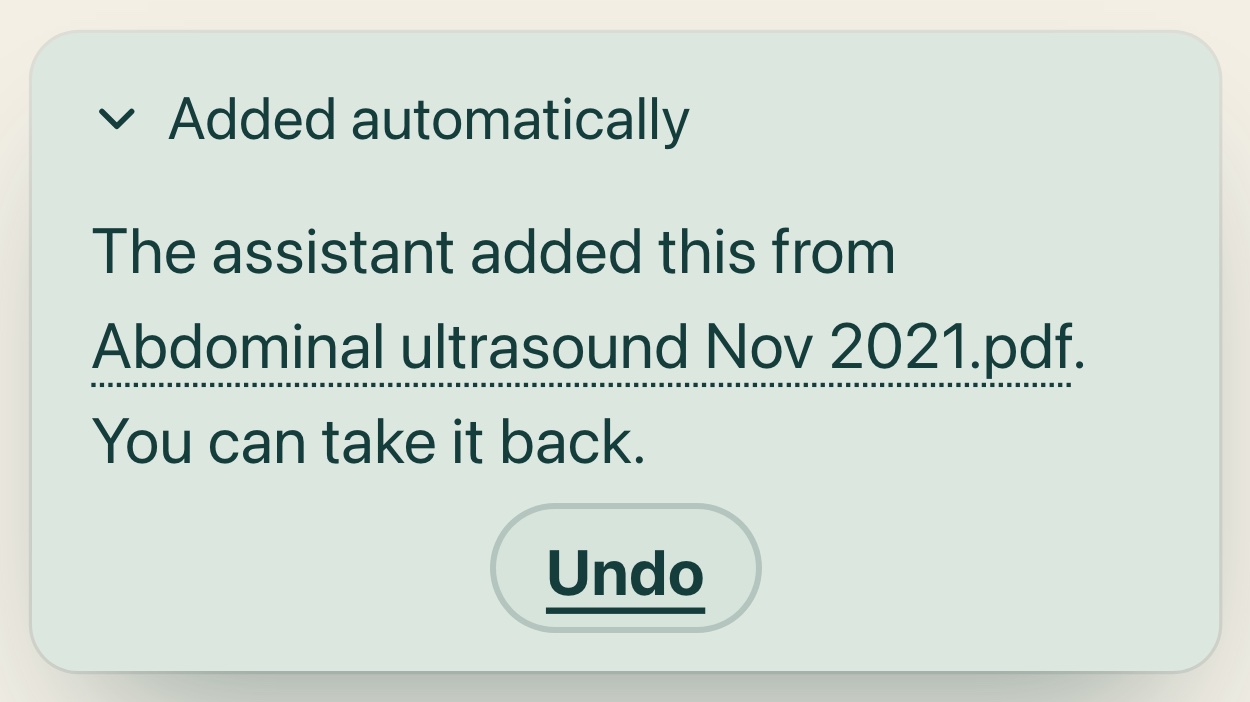
| Added automatically | A routine fact (a dated timeline event, or a row in an existing trend table) went in without a click because the code found nothing to hold. Open the mark to read "The assistant added this from {file}. You can take it back." and press Undo. |
| Decided by the assistant | The item was held, and the connected assistant decided it with a reason. See the assistant deciding held items. It can be undone from Review. |
| Suggested, approved | The assistant proposed it, and you approved it in Review. |
| Typed by you | It came from a visit note or an item you wrote yourself. |
| Imported, unchecked | It came from an older imported history and has not been checked against the original documents. |
| No mark | A lab value read from a document by the lab reader on this computer. |
The same origins are also written out in full wherever an entry travels, in the brief item list and in a brief itself:
- Added automatically from {file} · not reviewed
- Decided by the assistant · not reviewed by you
- Assistant-proposed · approved by vault user, not clinician-verified
- Patient-entered · reviewed by vault user
- Page {page} · read on this computer, not reviewed (a lab value)
- From your imported history, not yet checked against the originals
"Not clinician-verified" is on purpose. No entry in Ovillo has been checked by a clinician, whatever its mark.
Trends and connections
Lab values are filed into one table per test as your documents are read. The page says they are "shown as recorded, without clinical interpretation", and a box titled What these numbers cannot tell you repeats the limits: different labs and methods can give different numbers for the same blood, a range is the one printed on that report and not a general rule, and no clinician has checked the values here.
Values are kept as printed
A value appears exactly as the document printed it, including limits such as <0.5. Ovillo never rounds it or rewrites it. Each cell also carries a short word comparing it with the range printed on the same report: inside, above, below, far above, far below, "limit, unclear" or "no range printed". A table shows its count ("3 values") and, when it is long, a fold such as Show all 8 values.
The unit shown beside a value
One test is sometimes printed in two units by two labs. Ovillo keeps each value in the unit it was printed in and, where it knows a standard factor, shows the same number in the table's main unit next to it, marked with "≈". Hover over it to read "Converted on this computer with the standard factor; the value as printed is the one before it."
If Ovillo does not know a safe conversion, the value gets an other unit mark instead, with the note "the app does not convert it, so do not compare the numbers directly." A value in another unit is also left off the small trend line. Counts printed with a thousands mark (such as "245.000 /mm³") get no conversion at all, because the mark can mean a decimal point or a thousand, and they wait in Review.
Besides the built-in factors, you or the assistant can teach Ovillo one. It is accepted only when it fits the reference ranges the documents print in both units, and it waits for your approval. Taught tests and units are listed in Settings under Tests learned from your documents and Units learned from your documents, each with Forget. Forgetting stops reading or converting; values already filed stay.
Connections between items
Below the tables, Connections between items lists links the assistant drew across documents. Every connection waits for your approval first, cites at least two sources, and says what later result would make it wrong.
Medicines
Medicine wording is kept as the documents or the family wrote it, with its date. Ovillo never fills in a missing dose or frequency. A warning box at the top of the page always reads:
Important. Do not use this list to start, stop, or change medication. Reconcile it with a clinician or pharmacist.
Each medicine line shows a status and links to change it:
- Still taking records "Still taking, you said on {date}".
- Stopped records "Stopped, you said on {date}" and adds a timeline entry "{name} stopped (family's note)".
- Clear takes the status back to "Not yet marked" and removes the timeline note that status wrote.
The status is the family's word, dated. It is not a clinician's confirmation, and briefs carry it that way: "Taken, family's word, {date}". A medicine entered after a visit says "Recorded after visit". Medicines are never added to the record without your approval, so each new one goes through Review first.
Opening the source
Every entry that cites a document shows a button with the file name and, when known, the page, for example "Abdominal ultrasound Nov 2021.pdf · page 2". Press it to open the document in Ovillo's own viewer at that page. Source notes from an imported history open a side drawer instead, where you can attach the original file.
A citation is a pointer, not proof. Compare the entry with the page, especially for a number. If a cited document cannot be found, the entry shows the mark "Dangling citation: source note missing" rather than hiding it.
Changing or removing an entry
Ovillo has no edit box for the text of an entry. What you can do depends on how the entry got there:
- Waiting in Review: press Reject proposal. It is not added and stays in the review history.
- Added automatically: open the mark and press Undo. On the Documents page, Undo the N entries this document added takes back everything that document added on its own, after you confirm with Yes, remove. Entries approved by you or by the assistant stay.
- Decided by the assistant: press Undo in Review. See Review for when that is refused.
- A medicine's status: use Still taking, Stopped or Clear.
A document cannot be removed while record entries still cite it: Ovillo says "Undo or reject them first, then remove the document." If a value looks wrong, see A number looks wrong.
Next: Review, Appointment briefs.
Something unclear or out of date? Tell us on GitHub.