Using Ovillo
Documents
The Documents tab lists every file you have added and where it has got to. This page covers adding files, the plan you approve first, the counts and statuses, opening and removing a document, duplicates and the file types Ovillo accepts.
Adding documents
You add documents from the Overview, not from the Documents tab itself. There are three ways:
- Drop. Drag folders or files anywhere on the page. Once you already have documents, the band reads Add more documents: drop folders or files anywhere on this page.
- Choose a folder: pick a folder; Ovillo goes through everything inside it, including subfolders.
- Choose files: pick one or more individual files.
Dropping files onto the assistant panel attaches them to your chat instead, unless you drop a folder.
The plan comes first
Nothing is stored until you approve a Folder plan. It tells you how many documents will be added (Add N other documents for the assistant to review.), how many files will be left out (Leave out N files.), and, in the lists you can open, which files and why. If the folder holds a history file or originals that a history cites, the plan says so too. Choose Bring these in to go ahead or Cancel.
After that each file is encrypted with your vault key before it is stored (Encrypted 3 of 12 files…) and reading starts on this Mac. You can keep working. If you stop it partway, you see Stopped. The files were not added. Anything already imported stays.
When reading finishes, a card on the Overview sums up the drop. It lists only what needs you, each with a button that opens just those files on the Documents tab: files waiting for a name (Say whose), locked files (Enter password), files naming someone else (Check), files with no clear date (Add the date), unreadable files (Look), items waiting for your OK (Review) and files that look like the same report as another (Compare). If nothing needs you it says Nothing needs you. Got it dismisses the card. On the Documents tab, Show all documents clears that filter.
File types
| Kind | Accepted | Notes |
|---|---|---|
.pdf | Text is read directly; scanned pages are read by text recognition (English and Spanish). Password-protected PDFs need their password. | |
| Photos and scans | .jpg .jpeg .png .webp .gif .bmp .tif .tiff .heic .heif | Read by text recognition on this Mac. HEIC and TIFF are converted on this Mac. |
| Word and similar | .docx .odt .rtf | Text is pulled out; layout and images are not shown. |
| Email and web | .eml .html .htm | |
| Plain text and data | .txt .text .log .md .markdown .csv .tsv .json .xml | .json and .xml inside a dropped folder are treated as app data and left out. Choose such a file directly to add it. |
| Left out | Old .doc, .xls, .xlsx, .ppt, .pptx, .pages, .numbers, .key, .odp, .ods | The plan says export it as PDF first (from Pages, Numbers, Excel or Word). |
| Left out | .zip .rar .7z .tar .gz | compressed folder: unzip it, then drop the folder again |
| Left out | Audio and video (.mp4 .mov .mp3 .m4a .wav and similar) | audio and video are not read |
| Left out | Hidden and system files, empty files, anything over 100 MB, exact duplicates, anything else | Each shows its reason in the plan, for example over 100 MB or file type not supported. |
The size limit is 100 MB per file. A file with no or an unknown extension is identified by its contents. A file the assistant cannot take whole (over 20 MB with unreadable text) stays in the vault but cannot be reviewed by the assistant. Reading, languages and accuracy are covered in How Ovillo reads documents.
The counts and the pipeline
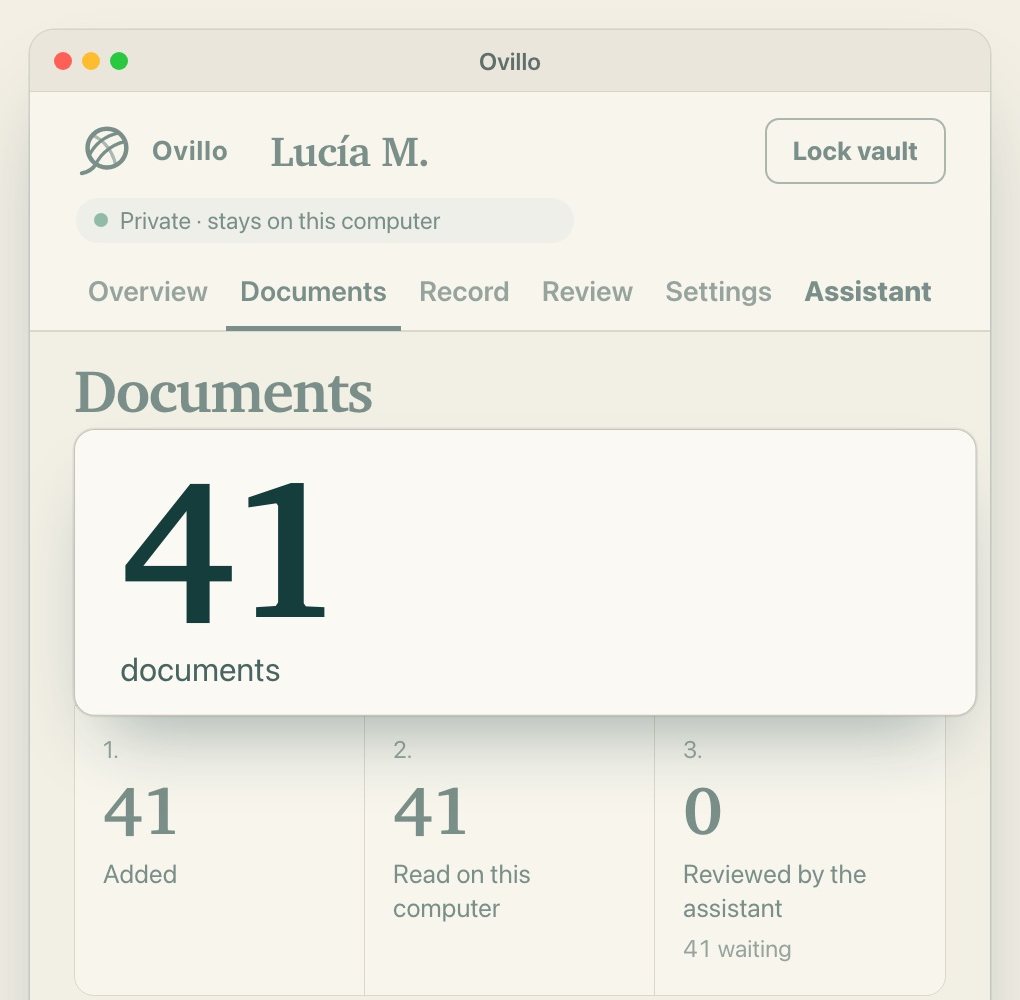
At the top are four counts: documents, timeline entries, medicine notes and pending review. The last three are hidden while they are zero and you have not imported a history. Under them, four steps show how far your documents have got:
| Step | What it counts |
|---|---|
| Added | Every file in the vault. |
| Read on this computer | Files whose text has been read. A note beside it says how many are still to read, locked or unreadable. |
| Reviewed by the assistant | Documents the assistant has been through (or you set aside). A note says how many are waiting. Without an assistant this stays at zero. |
| Waiting for your decision | Suggested updates in Review. |
While files are being read, a bar shows Reading documents 4 of 12, how many pages needed text recognition and which file is current, with Pause, Resume or Try again. Above the list, a button takes the next step: Review N new documents when an assistant is connected, Connect an assistant when it is not, and Review now when updates are waiting.
Statuses and filters
Each file is a card with its name, folder and a best guess at its type, date, facility and page count. That guess comes from the text and can be wrong. A coloured status says where the file stands. Four filter buttons sort them: All, Needs you, In progress and Done, each with its count.
| Status | Filter | What it means |
|---|---|---|
| Waiting to be read | In progress | Added, not read yet. |
| Reading it now (or …: page 2 of 5) | In progress | Being read on this Mac. |
| Read · waiting for the assistant | In progress | Read, not yet reviewed. Stays this way until an assistant reviews it. |
| The assistant is reviewing it now | In progress | An assistant review is running. |
| Password-protected | Needs you | Enter its password, or remove the file. A Word file that is an older format or protected shows the same label and asks you to save it as .docx or PDF without a password. |
| Could not be read: … | Needs you | Save the original to look at it yourself, or remove it. |
| Names someone else: …, Birth date … does not match, The name on this scan reads “…” | Needs you | Held. Nothing from it is filed or sent. Use Yes, it's <name>'s or remove it. For a scan that may be a poor reading of the right name, No leads to removal. |
| The assistant could not finish it | Needs you | The assistant panel says why. It is tried again at the next review. |
| Reviewed · N suggested updates | Done | The assistant reviewed it and suggested updates, which are in Review. |
| Reviewed · nothing new to add | Done | Reviewed; the record already covered it. |
| Set aside without a review | Done | Marked as looked at, without a review. |
| Read · cited by your history | Done | An original attached to an imported history's source note. |
A document the assistant decided is about this person says so in a note under the status, and can be undone in Review. The list shows the first 500 files (Showing the first 500 of N documents. Search finds the rest.).
Password-protected PDFs
When a PDF is locked, a box appears at the top of the Overview: Document password and Unlock. The password is checked on this computer against every locked file and never sent anywhere. If it opens some but not others, the rest stay listed, because each file can have its own password. Leave Keep this password in the encrypted vault and try it on locked documents added later ticked to save it inside the vault; untick it to use it for this session only. Saved passwords are listed in Settings under Document passwords, with Forget saved passwords.
Opening a document
Select a file's name to open it in its own window.
- PDFs open in Ovillo's own viewer: the file name and page count at the top, − and + to zoom out and in, and Print. The pages are drawn as images, so text cannot be selected in the viewer. If a translation is available it can sit beside the page (see below).
- Photos open as they are (HEIC and TIFF are converted for viewing).
- Other types open as a text copy headed Text copy of <name>. Layout and images are not shown. Never as live web content.
The file is decrypted only into memory for the viewer, not written to a file. If you open a document from a citation in the record or an assistant answer, the viewer goes straight to the cited page. A password-protected PDF the viewer cannot open on its own asks This PDF is password-protected. Password with Open.
Printing from the viewer first draws every page, then opens the print dialog. Print… is also in the File menu (Cmd P). Save original on a card downloads the file as it was; that copy is not encrypted, so keep it somewhere you trust.
On an Apple silicon Mac with macOS 27, the viewer can show a translation beside the original page, in English or Spanish, made on this Mac. It needs the reader helper (see Install). On other Macs the button does not appear.
Removing a document
Choose Remove on a card. Ovillo asks Remove <name> from this vault? It is deleted from this computer; backups you saved earlier still have it. Choose Remove it or Cancel.
Some documents cannot be removed:
- A cited original (Read · cited by your history) has no Remove button, because your history cites it.
- A document the assistant is reviewing right now has none until the review ends.
- A document that record entries cite. Ovillo says 1 record entry cites this document. Undo or reject it first, then remove the document. If a document filed entries on its own, Undo the N entries this document added removes those (entries you or the assistant approved stay), after which you can remove it.
Removing one of several grouped photos of a letter keeps the others as separate files.
Duplicates and photos of one letter
- Exact duplicates (the same file contents, checked against everything already in the vault and in the same drop) are left out of the plan as duplicate of a file already included.
- Probably the same report. A later copy with the same date and place and mostly the same results gets a note, for example Very similar to 2021-11-02 iron studies.pdf: same date and place, 94% of the same results. One may have more or different results, so check both before removing either. Ovillo never merges or deletes for you.
- Photos of one letter. Ovillo may offer These 3 photos look like one letter (…). Group them? with Group or Not these. Grouping is only a link: Nothing was merged. Each photo is still its own file. Undo grouping reverses it.
Two panels above the list
- Records we asked for is your own checklist of reports, imaging files or tissue you have requested from a place, with Asked on and Received. It is typed in by you, kept in the vault and says nothing about what exists.
- Copy originals for a new doctor makes one file with the originals you tick, named by date, place and type. The file is not encrypted: Anyone who has it can read it. Documents held as someone else's are marked Held: names someone else and not ticked by default.
Something unclear or out of date? Tell us on GitHub.