Using Ovillo
Appointment briefs
A brief is a short page you take to an appointment, made only from the record items you choose. This page covers preparing one, saving it, printing it, the plaintext download and its warning, the clinician one-pager, and the family update.
Preparing a brief
Briefs are made on the Overview. On the right, Prepare appointment says: "Only items you select will appear. Ovillo does not decide what is clinically important."
- Press Prepare appointment. The Appointment brief form opens: "Select exactly what you want to carry into the conversation."
- Type the goal in Goal for this appointment ("What do you want to cover?").
- Type who it is for in Specialty or recipient.
- Tick the items under Select record items. They are grouped as Timeline, Where things stand, Medicine note, Gap, Disagreement, Question and Next steps. Each line shows how it got into the record, with the full origin wording described on the Record page.
- Press Preview selected brief. The brief appears below the form.
- Press Save appointment to keep it in the encrypted vault ("Appointment brief saved in the encrypted vault."), or use Print or the download described below.
Goal, recipient and at least one item are required. If nothing in the record is ready, the list says "Approve record items before preparing a brief." Only items that are already in the record can be chosen. Items still waiting in Review are not offered.
What a brief contains
- The recipient and the goal, and the items you ticked, each with the documents it cites and its origin: what you typed, what the assistant proposed and you approved, what the app added on its own, or what the assistant decided.
- The source notes it used, and a list of records you have noted as never received (Records never received).
- A closing line: "Kept by the family, not checked by a clinician. These documents are missing: {list}. Values are as printed in the documents."
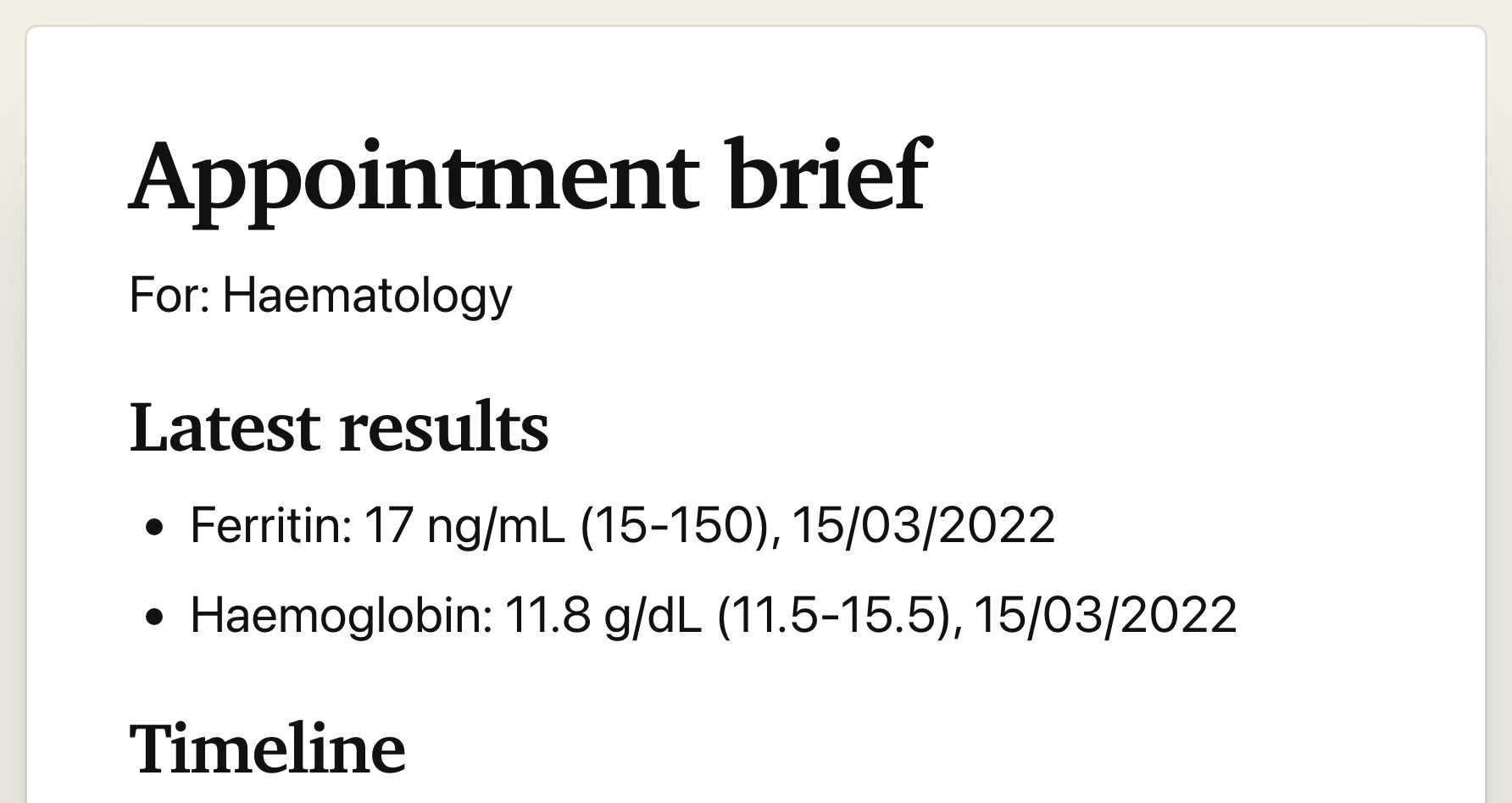
Lab values in a brief are copied as printed. A medicine you marked appears as "Taken, family's word" or "Stopped, family's word" with the date. Nothing in a brief says what is important, and the footer says it is not medical advice.
Letting the assistant fill the form
With an assistant connected, you can ask it to prepare a brief. It fills in the form and says "The assistant filled in the appointment brief. Check the items it chose, then preview it." The button Review the pre-filled brief opens it. It only fills the form. You still check the items and press Preview selected brief yourself.
Saved briefs
Saved briefs are listed under Saved briefs on the Overview, each as "{recipient}: {goal} (saved {date})", with Open, Print and Download. If everything the brief used is still in the record, Open rebuilds it from the record as it stands. If some items have since gone, it shows the brief as it was saved and says so.
Printing and the plaintext download
A previewed brief has three buttons: Save appointment, Download plaintext brief and Print. Print opens the Mac print dialog.
Important. A brief on the screen starts with "Private plaintext preview", and the downloaded file begins "Private plaintext export. This brief may contain sensitive health information." The download is an ordinary unencrypted HTML file named health-picture-appointment-brief.html, and a print is a paper or file copy. Once they leave Ovillo, the passphrase no longer protects them and they cannot be called back. Ovillo says "Protect the downloaded file." Share a brief only with the person it is for, and delete copies you no longer need.
The page also states what the brief is not: nothing in it has been checked by a clinician, medicines must not be assumed current or confirmed, and content that came from an imported history is an unverified snapshot.
The clinician one-pager
Next to Prepare appointment is a second button, Clinician one-pager. It opens the same form with the goal filled in as "Summary for this visit" and a starting selection chosen by the app, not by a model: everything under Where things stand, every medicine note, open questions, and open next steps. You can untick or add items before the preview, and you still enter a recipient.
The one-pager adds fixed sections around your items: People and places, Record numbers, Allergies (each marked with where it came from) and Latest results, the newest filed value of each test, as printed with its range and date. Results still waiting in Review and unchecked imported history are never listed. If the record holds only lab results and nothing else, a one-pager can still be made. The one-pager is saved, printed and downloaded exactly like any brief, with the same plaintext warning.
Update for the family
This is a separate, simpler page for relatives, not an appointment brief. On the Overview, press Update for the family. A panel opens with the person's name and the date and, as far as the record has it:
- how many of the newest results are inside their printed ranges ("{inside} of {total} results from {date} are inside their printed ranges"), and a list of those outside, each with its printed range;
- What changed since the last result for each test;
- Next steps and Dates coming up.
It uses only items that are approved or that the app filed. Items waiting in Review are left out, and a note counts newer results that wait there. If the assistant decided some items, the panel says "Some items were decided by the assistant, not by the family." It is written by the app from the record, not by an assistant. With nothing to report it says "Nothing to report yet. That says nothing about their health, only about the documents added."
Press Print to print only the panel. It is shown on this screen and never sent anywhere.
Related: The Record tab, Review, Privacy and security.
Something unclear or out of date? Tell us on GitHub.