Using Ovillo
The assistant
The assistant is optional. It reads your documents, answers questions with sources and can decide the items that would otherwise wait in Review. This page explains how to connect it, what it sends, and what you keep control of. Read the section on what is sent before you turn it on.
What it does and does not do
With an assistant connected, you can:
- Ask about the record in the Assistant panel (Ask about the record), or tell it something new, or attach a document.
- Have each new document read and compared with the record, with routine facts added and marked.
- Let it decide held items, with a reason for each one, which you can undo.
- Ask for longer outputs such as a summary, a table or a letter. They open as separate artifacts, not as part of the record.
It cannot delete anything, export anything, change Settings or move anything between people. Those stay with you. What it says is not medical advice, and nothing it adds has been checked by a clinician: items it approves are labelled Assistant-proposed · approved by vault user, not clinician-verified or Decided by the assistant · not reviewed by you.
Connect an assistant
Open Settings, then Assistant connection. There are three choices:
- No assistant: the default. Nothing is ever sent anywhere.
- Sign in with ChatGPT: uses your own ChatGPT plan, so there is no separate bill.
- Your own API key: any OpenAI-compatible service. You pay that service per use. Ovillo takes no cut and does not see the bill.
You can also start from the setup card, step 3, Connect the assistant (optional). It sends you to the same place.
Sign in with ChatGPT
- Choose Sign in with ChatGPT.
- Tick the consent box (see below). Without it, Ovillo says Tick the box below to confirm what is sent, then sign in.
- Press Sign in with ChatGPT. A new page opens in your browser on OpenAI's own site. Finish signing in there. Ovillo never sees your password.
- Back in Ovillo, choose a Model from the list.
- Press Save assistant connection.
The assistant uses your ChatGPT plan's usage allowance. The sign-in is kept only inside your encrypted vault. If the sign-in ends, Ovillo tells you to sign in again. Sign out ends it. The models in the list are the ones your plan offers, so the list depends on your plan. Ovillo does not say which plans work.
Your own API key
- Choose Your own API key.
- Under Service, pick OpenAI, OpenRouter or Anthropic, or pick Other (OpenAI-compatible) and type the Address of the service (https).
- Paste your API key.
- Type a model name, or press List models and pick one. The model must support tool calling.
- Tick the consent box, then press Save assistant connection.
The presets use these addresses: OpenAI https://api.openai.com/v1, OpenRouter https://openrouter.ai/api/v1, Anthropic https://api.anthropic.com/v1. OpenRouter passes your text on to the company that makes the model you picked.
The address rule is strict. It must start with https://, must be a public internet address (not this computer, a local network or a name without a dot), and must not contain a user name, password, ? or #. Ovillo checks this before it saves. The key is stored only inside the encrypted vault and is sent only to the address you chose. A saved key is reused only for the address it was saved with.
The consent box
Saving is blocked until you tick the box. It reads, for ChatGPT:
I understand that the record excerpts the assistant reads, and the passages, pages or text of the documents it chooses to read when searching my documents or reviewing one, are sent to OpenAI under my ChatGPT account. Each document is reviewed this way as soon as it is read here, without a click, including documents that were already waiting when I connect the assistant. An original file leaves this computer only when I click Send for that document, each time I am asked, never during an automatic review, and a file I send goes as it is. Nothing else leaves this computer.
With your own key, "are sent to OpenAI under my ChatGPT account" becomes "are sent to the service I chose above, under my own key."
Ask questions
Open the Assistant panel from the header. Type a question, or use a suggestion such as Summarise the current picture or What should I ask at the next appointment? Press Enter to send and Shift+Enter for a new line. Think it through asks for a longer answer that separates what the documents state from what is inferred. Stop ends a request, and your question goes back into the box.
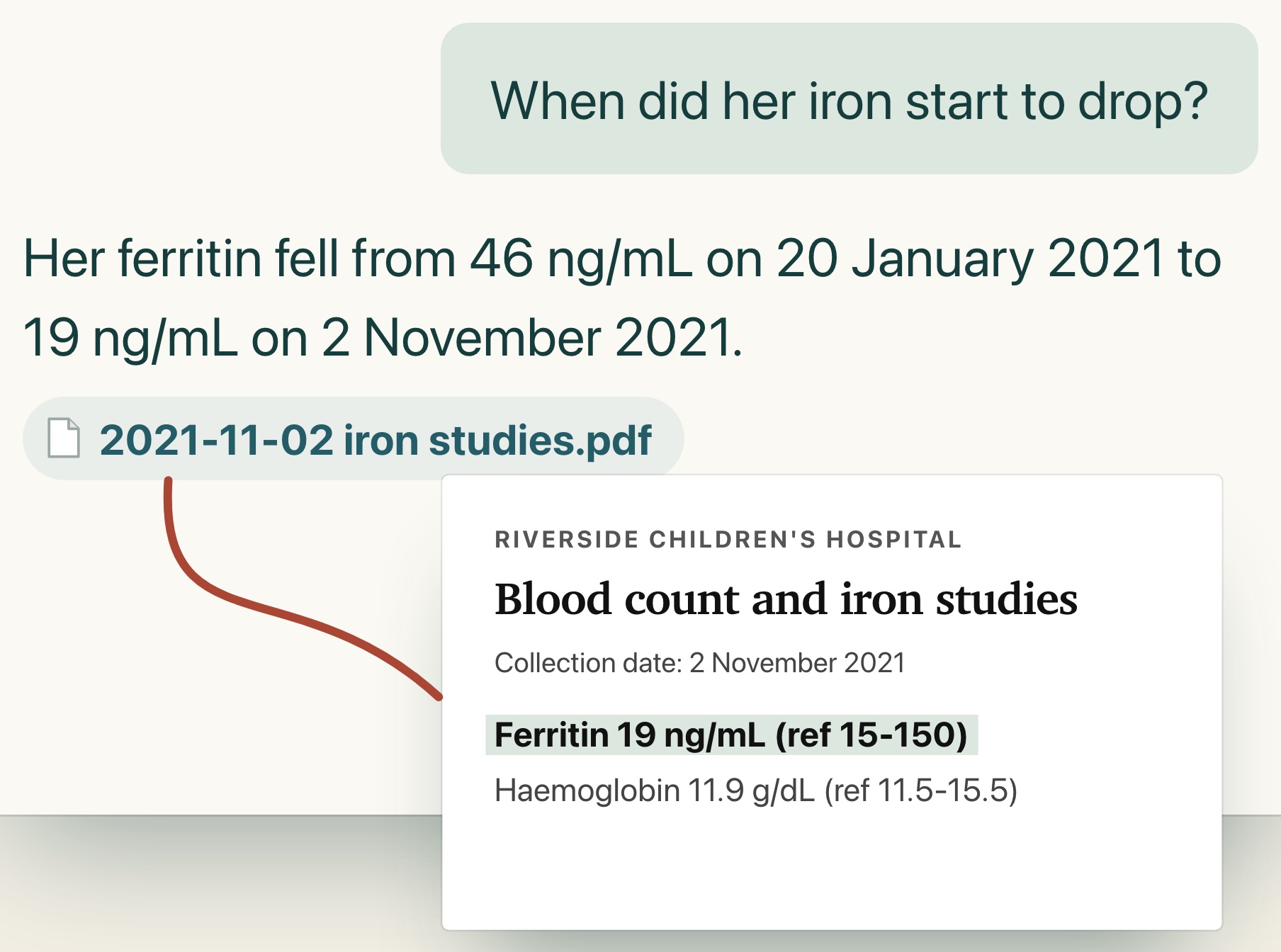
The assistant looks in the record first, then in your documents, and cites what it uses. A citation shows as a small chip. Press it to open the source note or the document page. If a cited source is not in the record, the chip says so. Ovillo also checks each reply on this Mac: a number or date that is not on the cited page, a source that is not in the record, or a cited document with no text can be flagged under the reply. Reply checks that fired in Settings counts them since you opened Ovillo.
An answer can still be wrong. Check the page it points to.
Chats, notes and artifacts
The Chats button in the panel opens your conversations. They are kept encrypted in the vault, so you can open one and carry on. For each chat you can Rename it, Delete it (Ovillo asks first, and it cannot be undone) or Move to group. Make a group with Add group (for example "Kidney"), and rename or delete a group with Rename and Delete group. New conversation starts a fresh one.
Notes (What it remembers) holds how you like to work and what you are working toward. A note the assistant suggests is used only after you press Keep. Medical facts are never kept there. Artifacts lists the longer documents it has written for you.
Reading new documents
With an assistant connected, a document that Ovillo has finished reading on your Mac is reviewed without a click. The assistant reads it, compares it with the record and reports what it finds. Routine facts (a new timeline event, a row in an existing trend table) go in only if Ovillo's own checks find nothing to hold, and they are marked as added automatically. Everything else is held. When you connect an assistant, or finish setup with one connected, the documents already waiting are reviewed the same way, and a status line says Reviewing the N documents that were waiting. You can also start a review yourself with Review new documents in the panel, which shows how many are waiting. Each document gets its own short conversation. After a batch, the assistant decides held items and drafts the overall picture for your OK; Update the picture now in Settings does the second part by hand.
Deciding held items
The setting Let the assistant decide held items is on by default. With it on, the assistant decides what would otherwise wait for you, says why, and every decision can be undone. Some things always stay with you, for example your own visit notes and a document that names someone else. The full rules are on Review. Turn the setting off to approve by hand.
What is sent, and to whom
Nothing is sent until you connect an assistant and use it. When you do, each step of a conversation goes from the app to the service you chose: OpenAI for Sign in with ChatGPT, or the address you gave for your own key. What goes is your message and the record excerpts, document passages and pages the assistant reads. The provider sees that text in plain form, under your own account. Ovillo has no server in between and keeps nothing online.
Important. Original files stay on your Mac unless you allow one. The assistant works from the text Ovillo read here. When a document has no readable text (fewer than 40 letters and digits on all its pages), or the assistant needs to see a page's layout, a dialog asks Send the original file? with Send this file and Don't send. Nothing is sent unless you press Send this file; no answer within two minutes counts as no. A file you allow goes as it is, with nothing in it replaced. Ovillo asks every time. During automatic reviews it never asks; a document that needs its original stays waiting until you start a review yourself.
What is scrubbed first
Before text leaves, Ovillo replaces details on your Mac with placeholders such as [PATIENT] or [PERSON-1]: names, phone numbers, email addresses, street addresses, birth dates and labelled ID numbers. A name model that runs on your Mac finds names that have no title in front. On a Mac with the on-device reader helper, Apple's name finder runs as well, and the two together catch a little more. The assistant's replies are turned back into the real details on your Mac.
Scrubbing is not complete. Ovillo measured it on 250 invented Spanish clinical cases (MEDDOCAN, 5,661 marked details). It hid 2,641 of them, which is 46.7 percent overall:
| Kind of detail | Hidden |
|---|---|
| Clinician's name | 100.0 percent |
| Patient's name | 99.2 percent |
| Email address | 99.6 percent |
| Phone number | 96.2 percent |
| Patient's ID number | 95.1 percent |
| Street address | 78.7 percent |
| Dates | 40.4 percent |
| Hospitals | 11.5 percent |
| Places | 4.2 percent |
| Patient's age | 0 percent |
Ages, places and hospitals are not targeted at all, and most dates get through. Clinician and street figures come from the first run; the patient name, ID and overall figures are after tuning. The test was on Spanish text, so treat it as a guide, not a promise. If the name model cannot run, the panel says so, and a name with no title can slip through.
See what was sent
The chip in the header reads Private · stays on this computer while no assistant is connected and Private · assistant uses followed by the provider's name once one is. Press it to open Your privacy right now. The panel states where your files live, how long until auto-lock, whether anything has been sent since you unlocked (and when the last request went), and how scrubbing is doing. Under it, See exactly what was last sent shows the text of the last request as it left your Mac, scrubbed, so you can check it yourself. The panel's wording says original files are not sent. That is true for the text path but not when the assistant attaches a whole file, as described above.
One other connection exists whether or not an assistant is connected: the update check to GitHub. It shows GitHub the app version and your IP address, and nothing from the record.
Disconnect
In Settings, Assistant connection, press Disconnect. Ovillo removes the sign-in or key from the vault and confirms. Everything the assistant already added stays in the record, marked, and the undo buttons keep working. Text already sent to a provider is theirs to handle under your account. Ovillo cannot recall it.
What works without it
Everything except the assistant. Ovillo reads PDFs, photos and scans on your Mac, builds the record, keeps lab values as printed, searches your documents by words and meaning, prepares appointment briefs, and holds unusual items for you in Review, where you approve by hand. Reading and search work offline. The assistant needs the internet and your provider.
Something unclear or out of date? Tell us on GitHub.